Recent Tracks
ihntienthieii
-
nrenettanntnhteniri
eghtnananhiet
-
rrpagpttttrtipnt
ptgntheaaerg
-
einhanirhgaeaiennete
naaaiinergia
-
neprtnenitnrneeg
neetneatgrere
-
ahrpnpneriteteargt
OBS Replay Buffer Setup 9/7/2025
OBS settings (starts with your pc) (makes noise when you save replay) don’t leak method (working 2027)
Video > Output > Recording
- Output Mode: Advanced
- Recording Path: wherever
- Recording Format: Matroska Video (.mkv)
- Video Encoder: NVIDIA NVENC H.264
- Audio Encoder: FFmpeg AAC
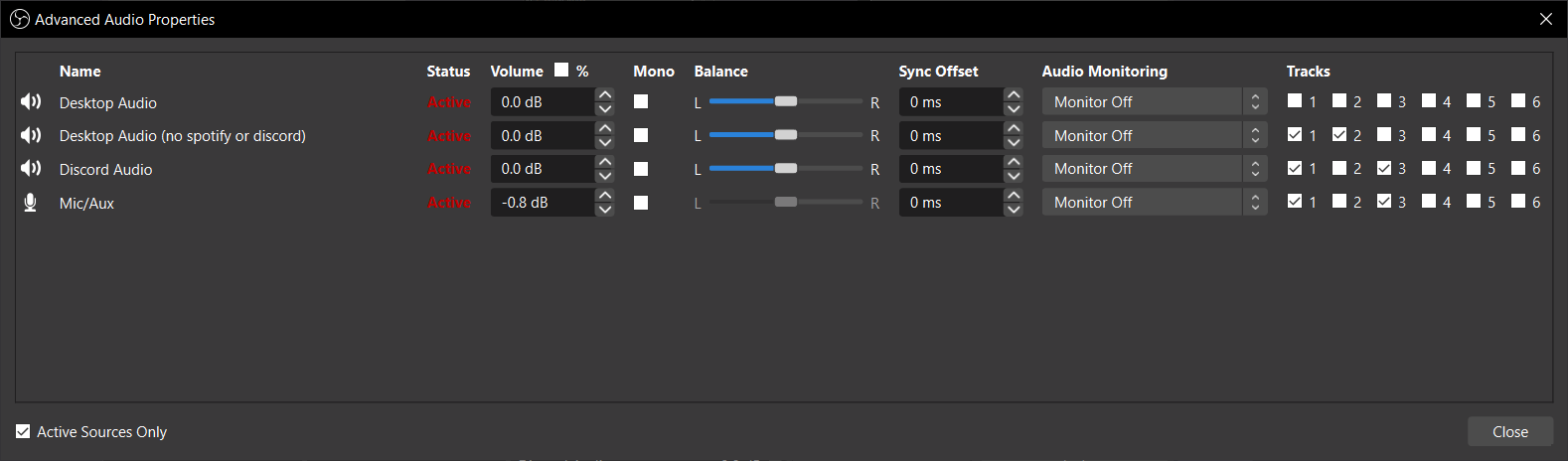
- Audio Track: 1 if you’re not doing anything fancy, but by using winCaptureAudio you can segregate audio tracks by programs, so for instance obs doesn’t capture spotify / discord. Or have a discord only track etc etc
- Rescale Output: 1920x1080 or 2560x1440
- Rate Control: CQP
- CQ Level: 18
- Keyframe Interval: 0 (auto) s
- Preset: P5: Slow (Good Quality)
- Tuning: High Quality
- Multipass Mode: Single Pass
- Profile: baseline
- Look-ahead: Enabled
- Psycho Visual Tuning: Enabled
- GPU: 0
- Max B-frames: 2
Video > Output > Replay Buffer
- Enable Replay Buffer: Disabled
- Maximum Replay Time: 120 s
- Maximum Memory (Megabytes): 4096 MB
General
- System Tray
- Enable: Enabled
- Minimize to system tray when started: Enabled
- Always minimize to system tray instead of task bar: Disabled
Hotkeys
- Replay Buffer
- Save Replay: whatever you want
Beep on Replay Buffer Save plugin
Download the lua script & sound file above into C:/Program Files/obs-studio/data/obs-plugins/frontend-tools/scripts, then in OBS:
- Toolbar (top of screen)
- Tools
- Scripts
- Plus button
- Select: “Beep on replay save.lua”
- Plus button
- Scripts
- Tools
You can replace the beep.wav file with any .wav file of your choosing, just make sure to keep the name the same, or change the name in the lua script. If you want to make it quiter, reduce the volume of OBS in windows audio mixer. (it’s loud asf by default)
Autostart replay buffer on boot script
This script will run obs and start the replay buffer automatically when your pc turns on.
To use this script you need to add it to your windows startup folder. You can do this by pressing Win + R, typing shell:startup and pressing enter. This will open the startup folder, just drag the script in there.
If obs is not installed in the default location you will need to change the path in the script. If you change it, be sure that the path is to the folder containing obs64.exe and not the path to obs64.exe itself.
Win Capture Audio (per application audio channels)
idk google a guide i’m not your daddy